+91 - 9877098771
 ‣Blogs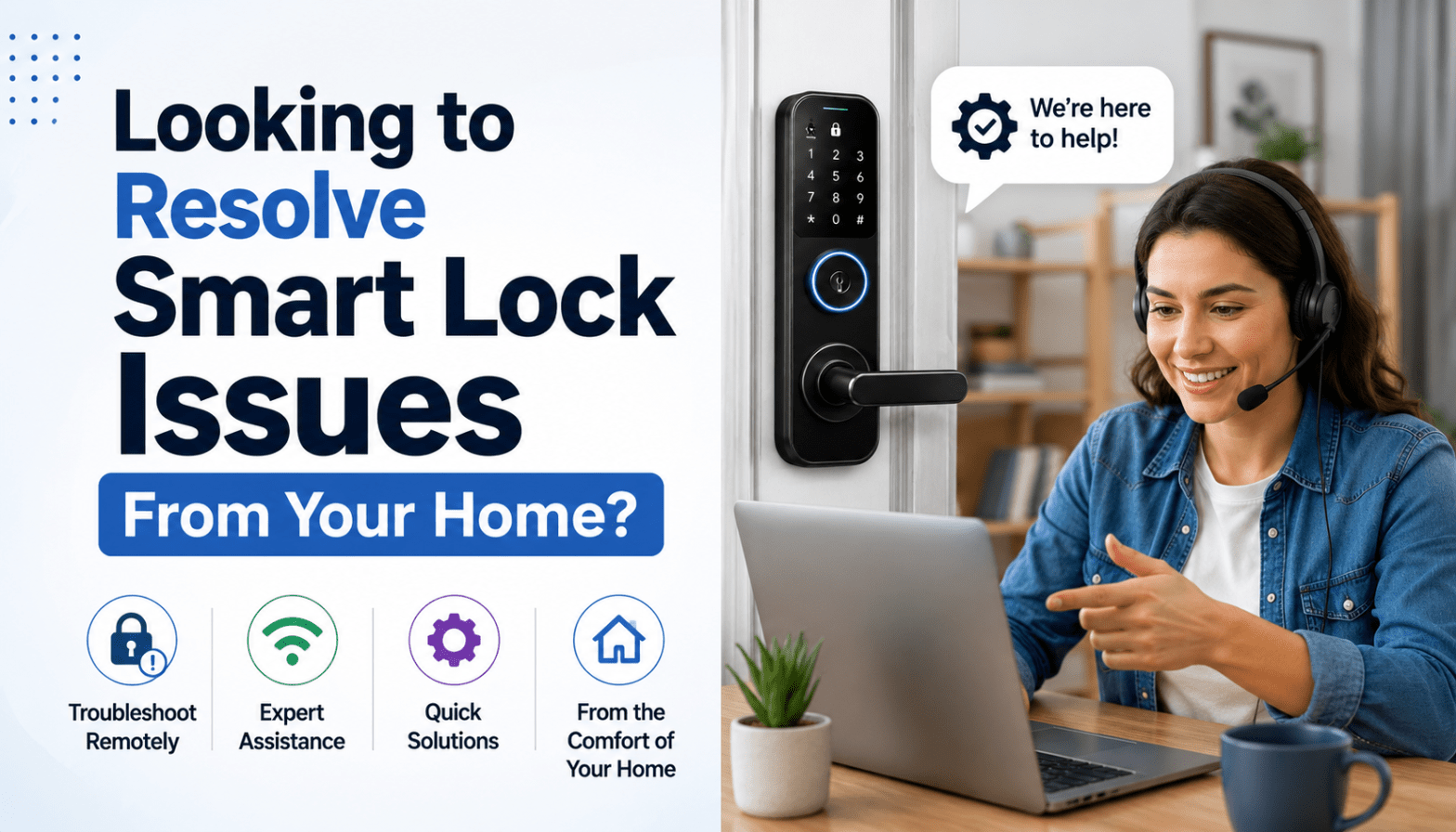
Looking to Resolve Smart Lock Issues From Your Home?
Troubleshooting your smart lock does not require calling a locksmith or a tech support hotline immediately. Most issues that frustrate smart lock users, from dead keypads to Bluetooth disconnections, have straightforward solutions that you can work through at home in under 20 minutes.
This guide outlines the most common smart lock problems, explains why they happen, and provides step-by-step solutions to restore your lock to full working order without unnecessary service calls.
Table of Contents
- Lock Is Unresponsive or Completely Dead
- The Deadbolt Jams or Fails to Lock Completely
- Smartphone App Disconnections and Connectivity Issues
- Keypad Inaccuracy or Ghost Touches
- Excessive Battery Drain
- The Last Resort: Factory Reset
- Preventive Maintenance Tips
- Frequently Asked Questions
- Conclusion
1. Lock Is Unresponsive or Completely Dead
When your smart lock shows no signs of life, no lights, no sounds, and no response to the keypad or app, the issue is almost always power-related.
Replace the batteries
Smart locks drain batteries faster than traditional hardware due to their motorised deadbolts and wireless connectivity. Always use fresh, high-quality alkaline batteries from a reputable brand. Never mix old and new batteries in the same set.
Check for battery corrosion
Open the battery compartment and inspect the metal contacts. White or powdery crystalline deposits indicate corrosion from a leaking battery. Clean the contacts gently with a cotton bud slightly dampened with white vinegar, allow to dry completely, then insert fresh batteries.
Use the emergency jump-start
Many smart locks feature two metal terminal contacts at the bottom of the exterior panel. Holding a standard 9V battery against these two contacts provides enough temporary power to operate the lock and allow you to replace the main batteries from inside.
2. The Deadbolt Jams or Fails to Lock Completely
A jamming deadbolt is one of the most common mechanical issues. It almost always occurs because the door latch and the strike plate in the door frame are slightly misaligned, forcing the motor to work against physical resistance.
Test with the door open
Use your thumb turn or app to extend and retract the deadbolt while the door is wide open. If it moves smoothly with the door open but jams when the door is closed, the issue is alignment, not the lock itself.
Inspect the strike plate
Look closely at where the deadbolt enters the door frame. If the bolt rubs against the top, bottom, or side of the strike plate opening, that friction is what is causing the jam. Adjusting or enlarging the strike plate opening slightly resolves most alignment issues.
Tighten door hinges
Before moving any hardware, tighten all the screws on your door hinges. Loose hinges cause doors to sag, which directly changes the relationship between the bolt and the strike plate. This is often the complete fix.
Lubricate the deadbolt
Apply a thin layer of graphite lubricant or a dry PTFE spray to the deadbolt mechanism and the strike plate opening. Avoid WD-40 or oil-based lubricants, which attract dust and create more friction over time.
3. Smartphone App Disconnections and Connectivity Issues
If your smart lock works perfectly via the physical keypad but fails to respond through your smartphone app, the issue is in the wireless connection chain, not the lock itself.
Power cycle the bridge or gateway
If your lock uses a dedicated Wi-Fi bridge or smart home hub, unplug it for 30 seconds, then plug it back in. Wait 2 minutes for it to fully reconnect before testing the app. This resolves the majority of intermittent connectivity issues.
Check distance and obstructions
Wi-Fi bridges and hubs must be within a reasonable distance of both your router and the lock. Thick walls, metal doors, and electrical interference from other devices can all block the signal. If signal strength is poor, consider a Wi-Fi range extender positioned between the router and the lock.
Force restart the app
Close the smart lock app completely on your phone, toggle Bluetooth off and back on in your phone settings, then reopen the app and attempt to reconnect. This clears temporary connection states that can cause the app to fail even when the underlying connection is functional.
Update the firmware
Outdated firmware introduces bugs that break app connectivity. Open the settings menu within your smart lock app and look for an available firmware update. Apply it during a time when you do not need to use the lock for 10 to 15 minutes.
4. Keypad Inaccuracy or Ghost Touches
Touchscreen and physical keypads can become unreliable over time due to weather exposure, dirt, or calibration drift.
Clean the keypad
Oils, dust, and moisture cause capacitive touchscreens to register phantom touches or miss deliberate ones. Use a microfibre cloth lightly dampened with water to clean the surface. Never use abrasive cleaners, acetone, or alcohol-based sprays directly on the keypad.
Disable lockout mode
If an incorrect passcode is entered too many times, most smart locks enter a security lockdown mode and temporarily disable the keypad. Check your user manual for the reset procedure specific to your model. This usually involves holding a reset button for several seconds.
Check in cold or wet conditions
Capacitive keypads do not work well with wet fingers. If you are experiencing issues specifically during rain or after washing your hands, dry your fingers completely before entering the code. Some models include a feature to activate the backlight as a guide in low-visibility conditions.
5. Excessive Battery Drain
If your smart lock is consuming a full set of batteries in a few weeks rather than the expected several months, something is forcing the system to work harder than normal.
Eliminate mechanical friction
As covered in the jamming section, if the motor must push forcefully against a misaligned deadbolt on every lock cycle, it draws significantly more power than normal operation. Fixing the alignment issue also resolves excessive battery drain in many cases.
Reduce Wi-Fi dependency
Pure Wi-Fi connections consume far more power than Bluetooth. If your lock offers both, consider switching to Bluetooth for daily local use and reserving Wi-Fi for remote access.
Check Wi-Fi signal strength
If the lock is forced to repeatedly reconnect to a weak Wi-Fi signal, the radio draws constant power trying to maintain the connection. Moving your router closer or using a range extender can dramatically reduce battery consumption.
6. The Last Resort: Factory Reset
If you have tried all the steps above and your smart lock still behaves erratically, a factory reset may be necessary. A factory reset erases all stored user codes, removes network configurations, and returns the lock to its original out-of-box state. Only use this as a final option.
General factory reset procedure (consult your specific model’s user manual for exact steps):
- Remove the interior battery cover.
- Locate the small recessed reset button, often requiring a paperclip or SIM ejector tool to press
- Press and hold the reset button while simultaneously removing and reinserting a battery
- Wait for the lock to emit its confirmation sound or light sequence
- Re-pair the lock to your smartphone app and set up fresh access credentials from scratch
7. Preventive Maintenance Tips
Keeping your smart lock functioning reliably year-round requires only a few basic habits:
- Weatherproof your door: Ensure the weather-stripping around your door is not pushing the door outward, forcing the deadbolt to work harder than necessary on every cycle.
- Seasonal alignment checks: Wood doors expand in monsoon humidity and contract in dry winter air. Check your door alignment and re-lubricate the bolt twice a year.
- Keep physical backup keys safe: No matter how advanced your smart lock is, always keep a physical backup key stored securely with a trusted person outside your home.
- Set battery replacement reminders: When you replace batteries, set a calendar reminder for 6 months later so you change them proactively rather than reactively.
Frequently Asked Questions
Q: My smart lock keeps disconnecting from the app even though Wi-Fi is stable. What should I try?
Try power cycling the lock itself by removing the batteries for 60 seconds and reinserting them. Also check that your router’s firmware is up to date, as outdated router software can cause repeated disconnections with IoT devices.
Q: My fingerprint stopped being recognised. Do I need to re-register it?
Yes, in most cases. First clean the fingerprint sensor with a dry microfibre cloth. Then delete the affected fingerprint from the app and register it again, this time including multiple scans at slightly different angles to improve recognition accuracy.
Q: Can I reset my PIN without resetting the entire lock?
Yes. Most smart locks allow individual PIN codes to be deleted and replaced through the companion app without triggering a full factory reset. Refer to the user access management section of your app.
Q: Is it safe to use a smart lock during a power cut?
Yes. Smart locks run on their own batteries and are completely independent of your home’s mains electricity supply. A power cut in your building has no effect on the lock’s operation.
Conclusion
By systematically working through whether your issue is electrical, mechanical, or digital, you can resolve almost any smart lock problem at home without an expensive service call. The solutions above cover the vast majority of issues that smart lock users encounter in real-world use.
The key is not to panic when something stops working. Work through the checklist methodically, and in most cases you will have the lock functioning normally within 20 minutes.
If you are still having trouble, or if you are considering a new smart lock and want to see one demonstrated before buying, book a free live video session with one of our product experts today.
Share: